Connect with OAuth
Claude, Claude Code and ChatGPT connect to PDF4.dev by signing you in. You paste no API key: the assistant opens PDF4.dev in your browser, you check what it asks for, and you allow it. From then on the assistant can render PDFs and manage your templates, within the access level you chose and the rules your organization sets.
Server URL: https://pdf4.dev/api/mcp
How it works
- MCP server URLpdf4.dev/api/mcpConnect1Add the server
Paste the server URL into your assistant and connect.
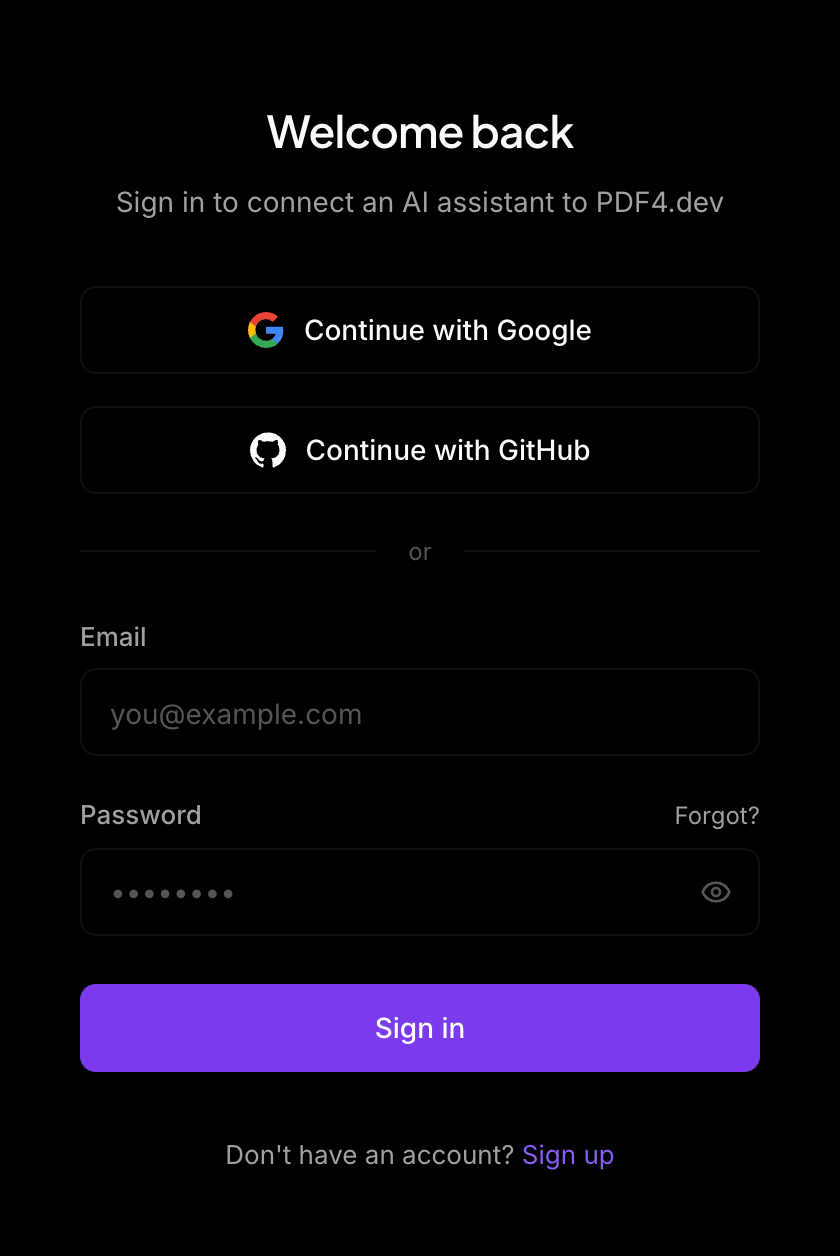 2Sign in
PDF4.dev opens in your browser. New here? Create an account on the way.
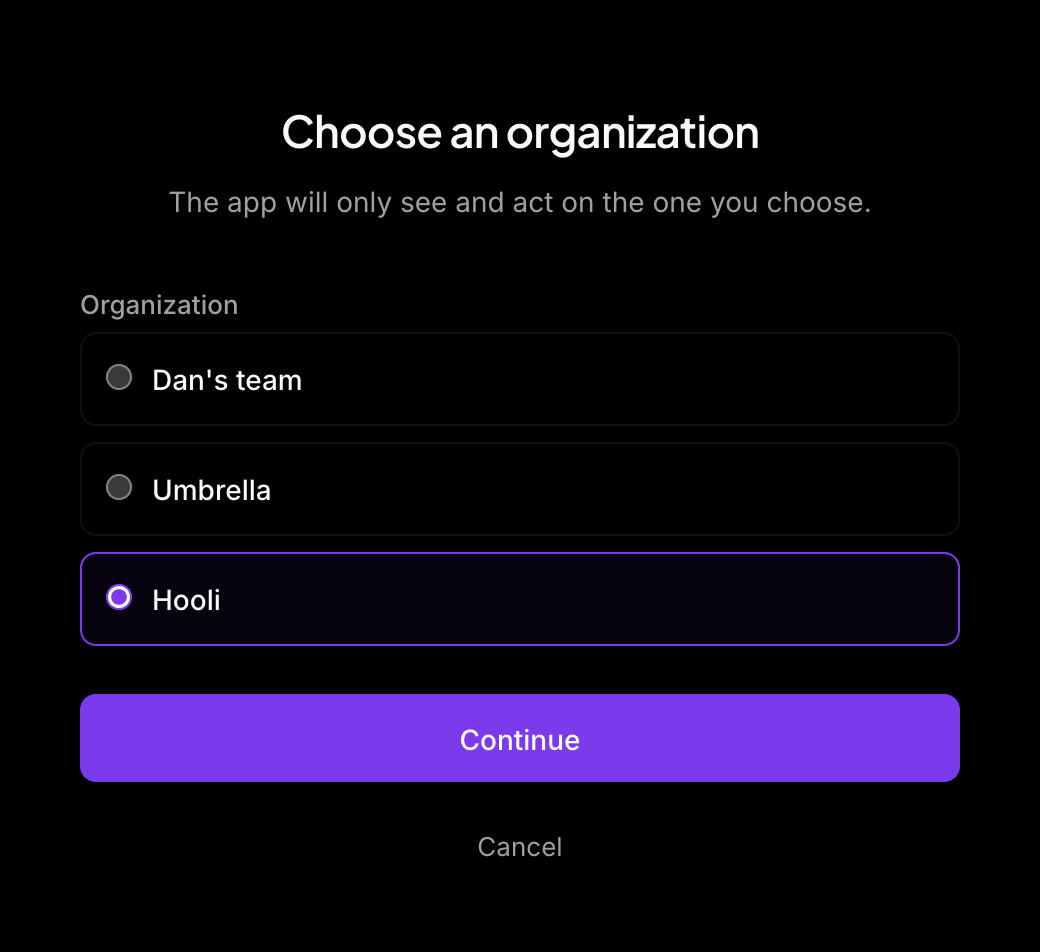 3Pick an organization
Only when you belong to several. The connection sees this one only.
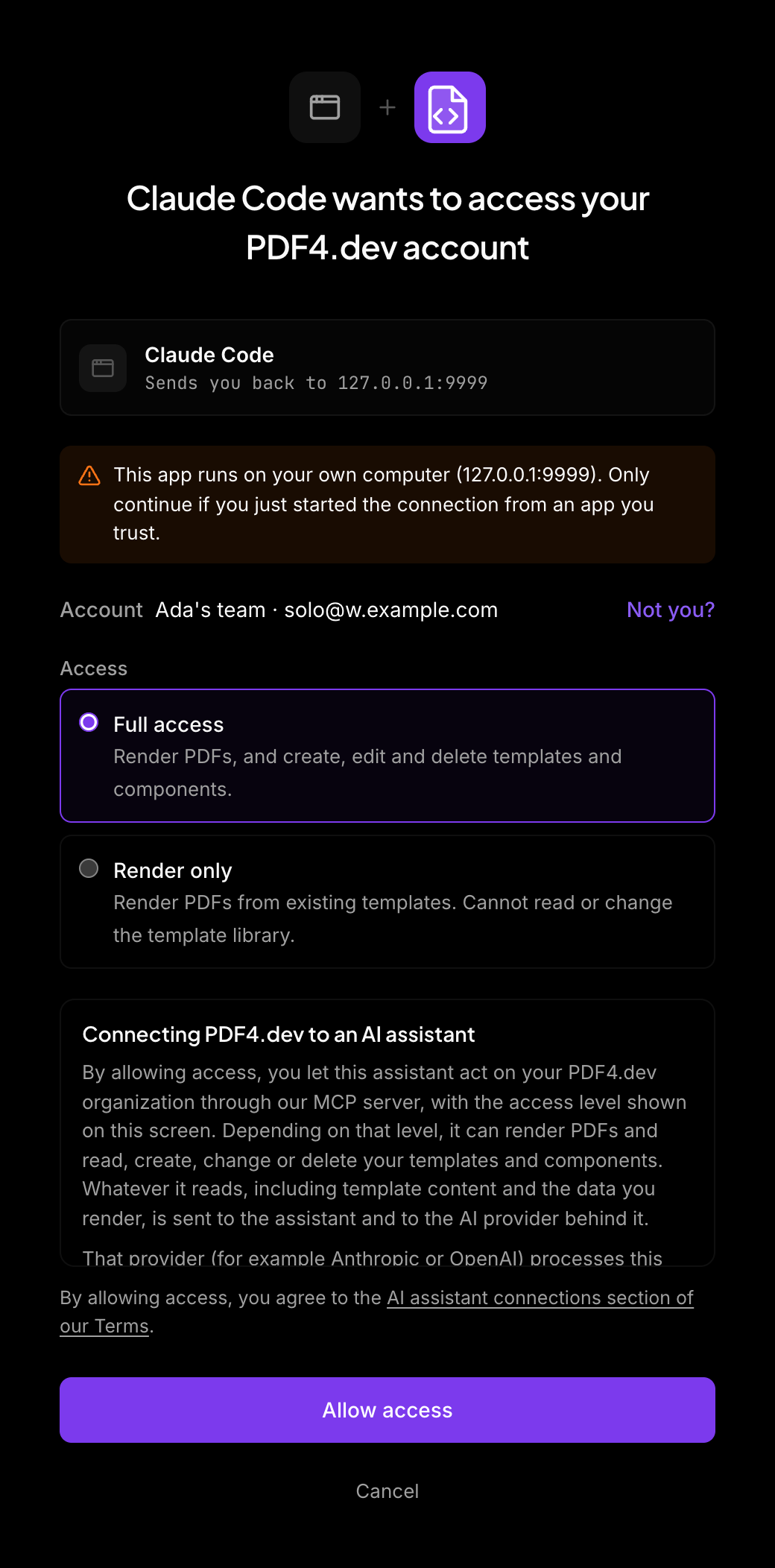 4Allow access
Check the account, pick full access or render only, then allow.
The connection belongs to you and to one organization. The assistant acts with your access in that organization, and nothing more: it cannot reach another organization, and an admin can cut it off at any time.
Before you start
- A PDF4.dev account. If you have none, create one during the sign-in step. It is free, with no credit card.
- Your organization allows it. Admins choose who can connect an AI assistant in Settings → Team → AI assistants. The default is All members.
- A client that signs in. Claude (web, desktop, mobile), Claude Code and ChatGPT do. Cursor, VS Code, Windsurf, Codex and Gemini use an API key instead.
Connect your assistant
Works in Claude.ai, Claude Desktop and Claude mobile.
- Open Customize → Connectors → Add custom connector.
- Enter the server URL
https://pdf4.dev/api/mcp, then choose Add. - Choose Connect. PDF4.dev opens in your browser.
- Sign in, pick an organization if asked, and choose Allow access.
On Team and Enterprise plans, an owner adds the connector once under Organization settings → Connectors. Each member then chooses Connect and signs in as themselves.
-
Add the server:
claude mcp add --transport http pdf4dev https://pdf4.dev/api/mcp -
Run
/mcp, selectpdf4devand choose Authenticate. PDF4.dev opens in your browser. -
Sign in, pick an organization if asked, and choose Allow access.
-
Back in the terminal,
/mcpshowspdf4devas connected.
- Open Settings → Security and login and turn on Developer mode.
- Open chatgpt.com/plugins and select +.
- Name it
PDF4.devand enterhttps://pdf4.dev/api/mcpunder Connection. - Create the connection. PDF4.dev opens: sign in, pick an organization if asked, and choose Allow access.
Developer mode availability depends on your account and workspace policy.
What the consent screen shows
The title reads "<App> wants to access your PDF4.dev account". Below it:
- The app and where it sends you back. The name the app gives itself, the domain it is published from, and the address that receives the answer. Apps that run on your computer, such as Claude Code, come with a note saying so.
- The account. The organization and your email. Switch picks another organization when you belong to several. Not you? signs you out and lets you sign in with another account.
- The access level. Full access or Render only, see below.
- A notice about your data. Whatever the assistant reads, including template content and the data you render, goes to the assistant and to the AI provider behind it, under that provider's terms.
- A link to the Terms that cover AI assistant connections.
Choose Allow access to connect, or Cancel to stop. Cancel tells the assistant you declined.
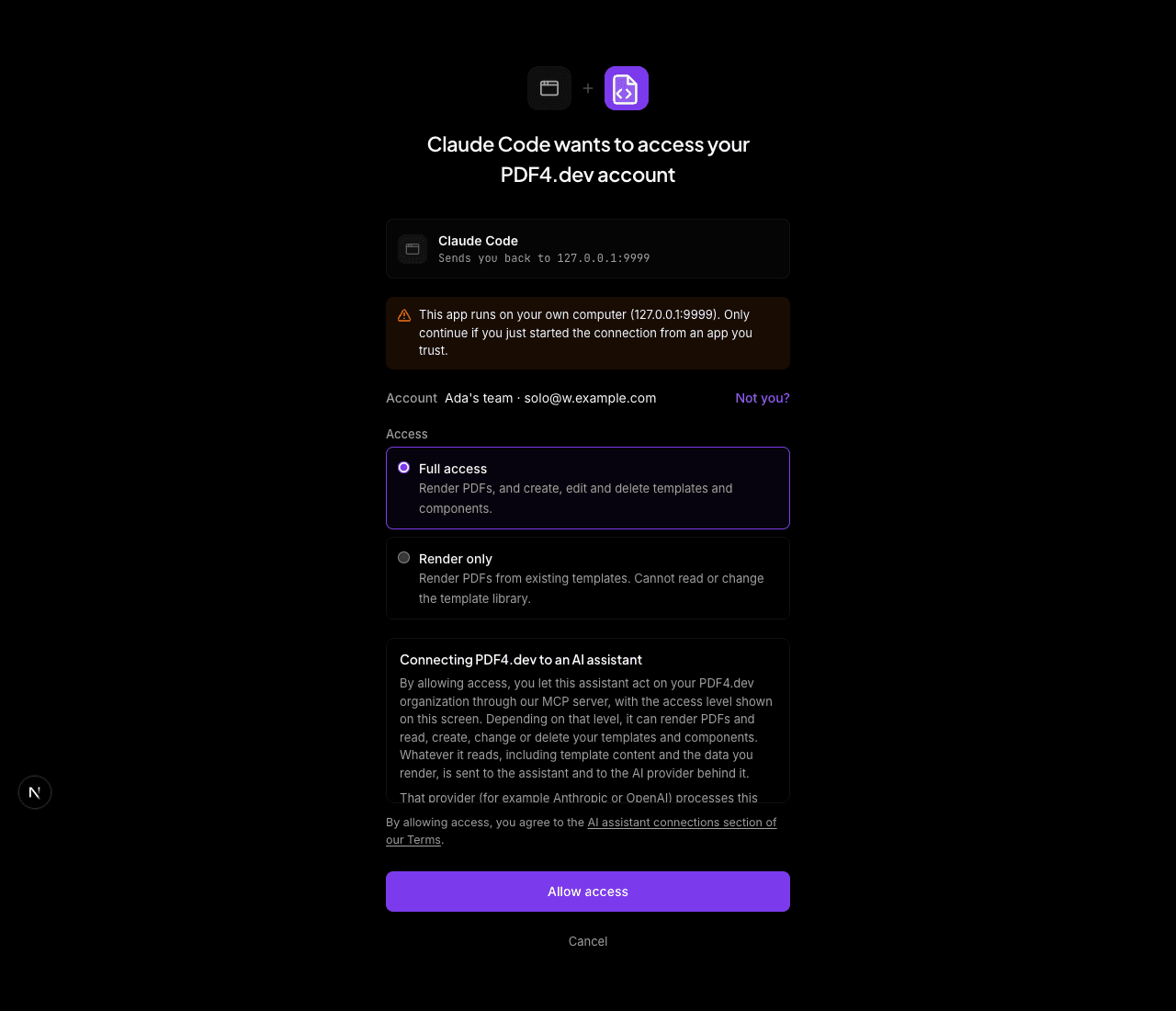
Access levels
| Level | Tools the assistant can call |
|---|---|
| Full access | All 14 tools: render, templates, components and logs |
| Render only | get_info, render_pdf and preview_template |
Pick Render only when an assistant should generate PDFs from existing templates and never read or change your template library. See MCP tools for every tool.
What you can ask
Once connected, ask in plain language. The assistant picks the tools.
| You ask | Tools it calls | Access level |
|---|---|---|
| "Render my invoice template for Acme, 3 items, due in 30 days" | list_templates, render_pdf | Render only |
| "Make a certificate template with a name and a date, and show me a preview" | create_template, preview_template | Full access |
| "Add our logo to the header of every quote" | list_components, update_component | Full access |
| "Why did my last renders fail?" | list_logs | Full access |
Admin control
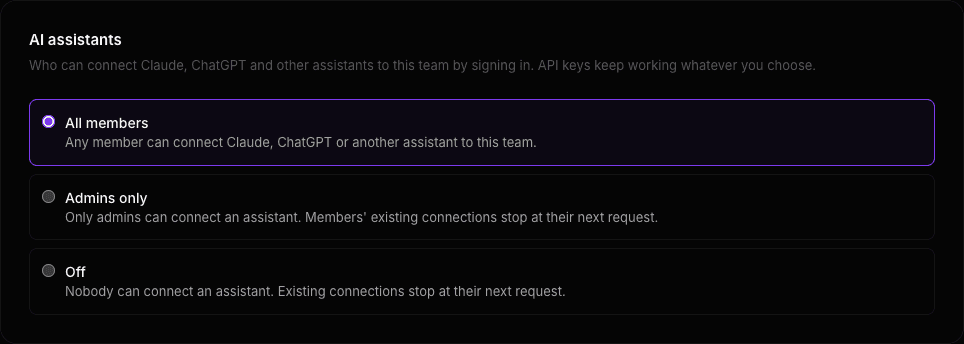
Admins decide who can connect an AI assistant. Open Settings → Team → AI assistants and choose one of:
| Setting | Who can connect |
|---|---|
| All members (default) | Every member |
| Admins only | Admins. Members see a message asking them to contact an admin |
| Off | Nobody. Existing connections stop working |
Only admins can change the setting. It applies at the next request of every connection, not at the next sign-in, so turning it off cuts existing connections straight away. API keys keep working whatever the setting says.
One organization per connection
A connection belongs to one organization. To use another, add the connector again and pick the other organization when asked, or choose Switch on the consent screen.
Tokens and revoking access
Access tokens last one hour. The assistant refreshes them on its own, so you stay connected without signing in again.
To revoke access:
- Disconnect PDF4.dev in the assistant.
- Remove the member from the team. Their connections stop at the next request.
- Set the AI assistants setting to Off.
API keys for CI and scripts
Servers, CI jobs and scripts have no browser to sign in with. Create an API key on the API keys page of your dashboard and send it as Authorization: Bearer <api-key>. API keys are not affected by the AI assistants setting.
Troubleshooting
| Message | What it means | What to do |
|---|---|---|
| "This authorization request expired. Start again from your app." | The consent screen stayed open too long. | Start the connection again from the assistant. |
| "Could not load your account. Start again from your app." | The consent screen could not read your account. | Start the connection again from the assistant. |
"<Organization> has turned off AI assistant connections." | The setting is Off. | Ask an admin to change it. |
"<Organization> only lets admins connect AI assistants." | The setting is Admins only and you are a member. | Ask an admin, or choose Switch when another organization allows it. |
| "Cannot connect an AI assistant" before the consent screen | No organization you belong to lets you connect. | Choose Cancel, then ask an admin. |
| "This organization has turned off AI assistant connections. Cancel to return to your app." after Allow access | An admin changed the setting while the screen was open. | Choose Cancel, and ask an admin. |
| "This app runs on your own computer." | The app, such as Claude Code, asks to be sent back to your machine. | Expected. Continue only if you just started the connection from an app you trust. |
| Signed in with the wrong account | The browser had another PDF4.dev session open. | Choose Not you? on the consent screen and sign in again. |